HOW-TO GUIDE
How to Choose a Soldering Iron for USB Port Repair
By the OhmSavvy Research Team ·
Safety before you heat a phone or laptop board
- Disconnect the battery before soldering on any device that has one, and keep heat, especially hot air, well away from lithium cells. A damaged or overheated lithium battery can catch fire.
- A soldering tip commonly runs at 300–370°C. Keep the iron in its stand when not in your hand, and use a fan or extractor to pull flux fumes away from your face.
- Plastic parts, flex cables and nearby components melt or lift under hot air. Shield them with heat-resistant tape or a heat shield before you start.
What USB port repair asks of an iron
A USB port is two different soldering jobs on one part. The metal shell is held by tabs that carry mechanical load when a cable is plugged in, so they are large and often tied into the board's ground copper, which pulls heat away fast. The contacts that carry power and data are small, and on USB-C and micro-USB they sit close together. An iron that is good at one and poor at the other makes the repair harder than it needs to be.
| Joint | What it needs | Typical tip |
|---|---|---|
| Shell / mounting tabs | Enough heat and recovery to wet a large, heat-sinking joint | Larger bevel or chisel |
| Power and ground contacts | Moderate heat; wider than data pins on many connectors | Small bevel or conical |
| Data / signal contacts | Precision and low solder volume to avoid bridges | Fine conical, small bevel or knife |
| Removing the old port | All joints molten at once, without lifting pads | Hot air, or iron plus wick and flux |
USB-C contacts are fine-pitch
Older ports are forgiving. A USB-A 2.0 port has four contacts, often through-hole, and micro-USB has five. A full-featured USB-C receptacle defines 24 contacts in two rows of 12, and on many surface-mount receptacles the contact spacing is around 0.5 mm. Footprints vary between connector models, and simplified USB 2.0-only or power-only receptacles use fewer contacts, so check the replacement connector's datasheet before you start.
Mounting style changes the job too. Through-hole shell tabs pass through the board and need heat to soak all the way down the hole, while surface-mount tabs sit on top and are mostly a matter of heating a large pad. Some receptacles put every signal tail at the back edge where a tip can reach it; others place contacts underneath the connector body, which only hot air or reflow can solder. Compare the old port with the replacement before you heat anything, so you know which case you are in.
For the removal and fitting procedure step by step, see how to solder a replacement USB connector onto a circuit board.
The close contact spacing puts USB-C signal pins firmly in fine-pitch territory, so the techniques in our guide to soldering fine-pitch SMD components apply directly: flux, tack, drag, inspect.
1Pick an iron with the tips you need
The single most useful feature for port work is a range of interchangeable tips. You want a fine conical or small bevel tip for the signal pins and a larger bevel or chisel for the shell tabs, and you want to swap between them quickly. Before buying, check which tips are made for the iron and how easy genuine replacements are to get. Our soldering iron tip types guide explains each shape. Using a larger tip on the shell tabs, rather than turning the temperature up, is usually the better way to heat a big joint.
Tip condition matters as much as tip shape on a connector this small. A fine tip that has oxidised won't pick up or release solder cleanly, which is how blobs end up across signal pins. Clean and re-tin it regularly during the job, and replace it when it no longer holds a bright coat of solder; our soldering iron tip care guide covers the routine. A plated tip that is looked after lasts far longer than one cleaned with abrasives.
2Choose adjustable temperature control and enough power
Temperature control matters because the two kinds of joint want different handling. Fine signal pins on leaded solder typically start around 280–310°C, while shell tabs into a ground plane may need a higher setting or, better, a bigger tip. A digital readout makes those changes repeatable; a basic dial works but involves more guesswork. Check the solder and component data for their limits, and see our soldering iron temperature guide.
Power is about recovery: how quickly the tip regains temperature after a heavy joint draws heat from it. The irons in our reviews all sit between 60W and 100W:
ESD protection is also worth weighing for phone and laptop boards, which carry static-sensitive parts. The Weller WE1010NA and Hakko FX-888DX are both listed as ESD safe by their makers; for the YIHUA 862BD+, the US listing says ESD safe but YIHUA's own spec sheet makes no ESD claim. If you're deciding between a pen-style iron and a station, our soldering iron vs soldering station comparison covers the trade-offs.
3Decide whether you need hot air
Removing a surface-mount port with an iron alone means freeing many joints plus the shell tabs at the same moment, which is slow and risks lifting pads. Hot air heats the whole connector evenly so it lifts free once every joint is molten. It also reaches contacts hidden under the connector body, which an iron tip cannot. Our guide on how to remove solder from a circuit board compares hot air with wick and a solder sucker.
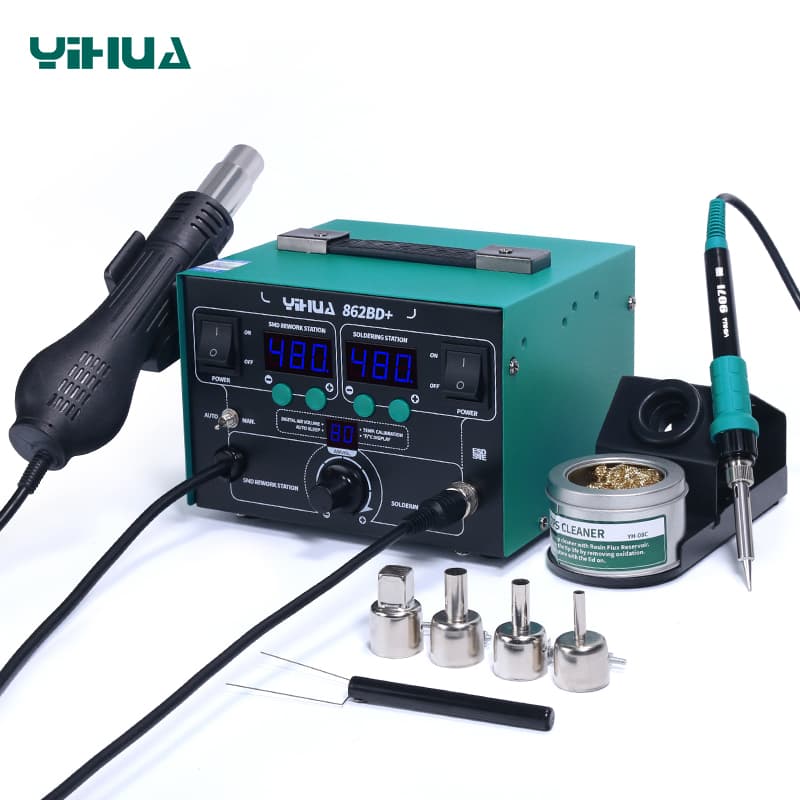
If you expect to do more than the occasional port, a combined station is worth considering. Per its specs, the YIHUA 862BD+ combines a 75W iron (200–480°C) with a 500W hot air gun (100–480°C), with independent LED readouts. Its input is rated 220V per the manufacturer's spec sheet, so confirm voltage compatibility for your region. Our Weller WE1010NA vs YIHUA 862BD+ comparison weighs it against a dedicated iron.
Portable iron, station or combo station?
Three kinds of tool show up for this job, and each fits a different amount of repair work. The examples below are picks from our roundup, described from their listed specs.
| Tool type | Example pick | Fits |
|---|---|---|
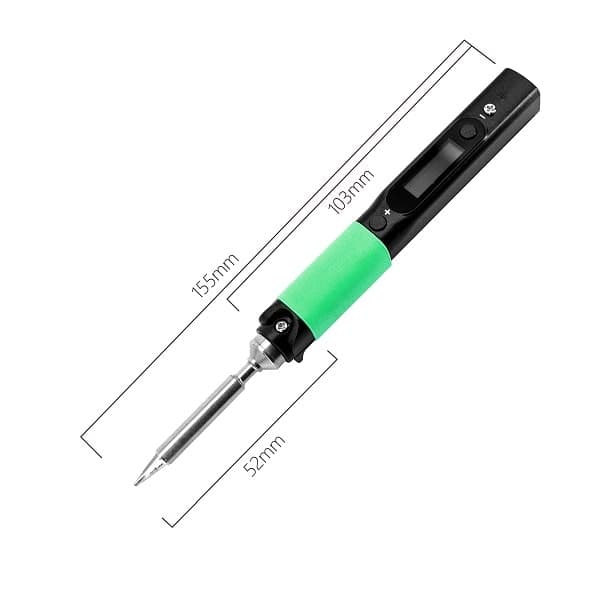
| Portable USB-C iron | Pinecil V2: about 60W on USB-C PD, up to 88W at 24V, OLED display | Occasional port fixes, field repairs, tight budgets |
| Digital bench station | Hakko FX-888DX (100W) or Weller WE1010NA (85W station, 70W iron), both with digital control | Regular board work where fine pins and shell tabs both come up |
| Iron + hot air station | YIHUA 862BD+: 75W iron, 500W hot air | Frequent removal of surface-mount ports and other multi-pin parts |
Whichever you choose, the supporting kit matters as much as the iron. Fine-pitch contacts are hard to judge by eye, so a loupe, head magnifier or stereo microscope is close to essential. Hold the board in a vice or board holder so it can't slide as you work, and have fine tweezers, solder wick, isopropyl alcohol and a fume fan within reach. Kapton-style heat-resistant tape protects nearby plastic parts if you use hot air.
Flux, practice and the repair workflow
No iron makes up for missing flux. Use a gel or tacky flux on every joint, for removal as well as for soldering the new part, and use thin solder so you can control the amount on the signal pins. Before working on a device you care about, practice on a scrap board: remove a connector, clean the pads with wick, and solder it back. It shows you how your iron behaves on large and small joints before the stakes are real.
01
Prepare
Disconnect battery, shield nearby parts
02
Remove
Flux, then hot air or iron and wick
03
Clean pads
Wick flat, isopropyl alcohol
04
Place + tabs
Align, solder the shell tabs
05
Signal pins
Flux, fine tip, drag or pin by pin
06
Inspect + test
Magnify, continuity, then power
Bridges between USB-C signal pins are the most likely fault after a swap. Our guide on how to prevent solder bridges covers prevention and clean-up, and a multimeter's continuity mode (see how to use a multimeter) confirms each pin before the device is powered.
Irons from our reviews that fit USB port repair
Based only on their listed specs, these picks match the needs above: digital temperature control, 70W or more, and, in the YIHUA's case, built-in hot air. The full comparison is in our best soldering irons roundup.
Suitable picks for port repair

100W ESD-safe station with closed-loop control from 50 to 480°C, for benches that see both fine port pins and shell tabs.
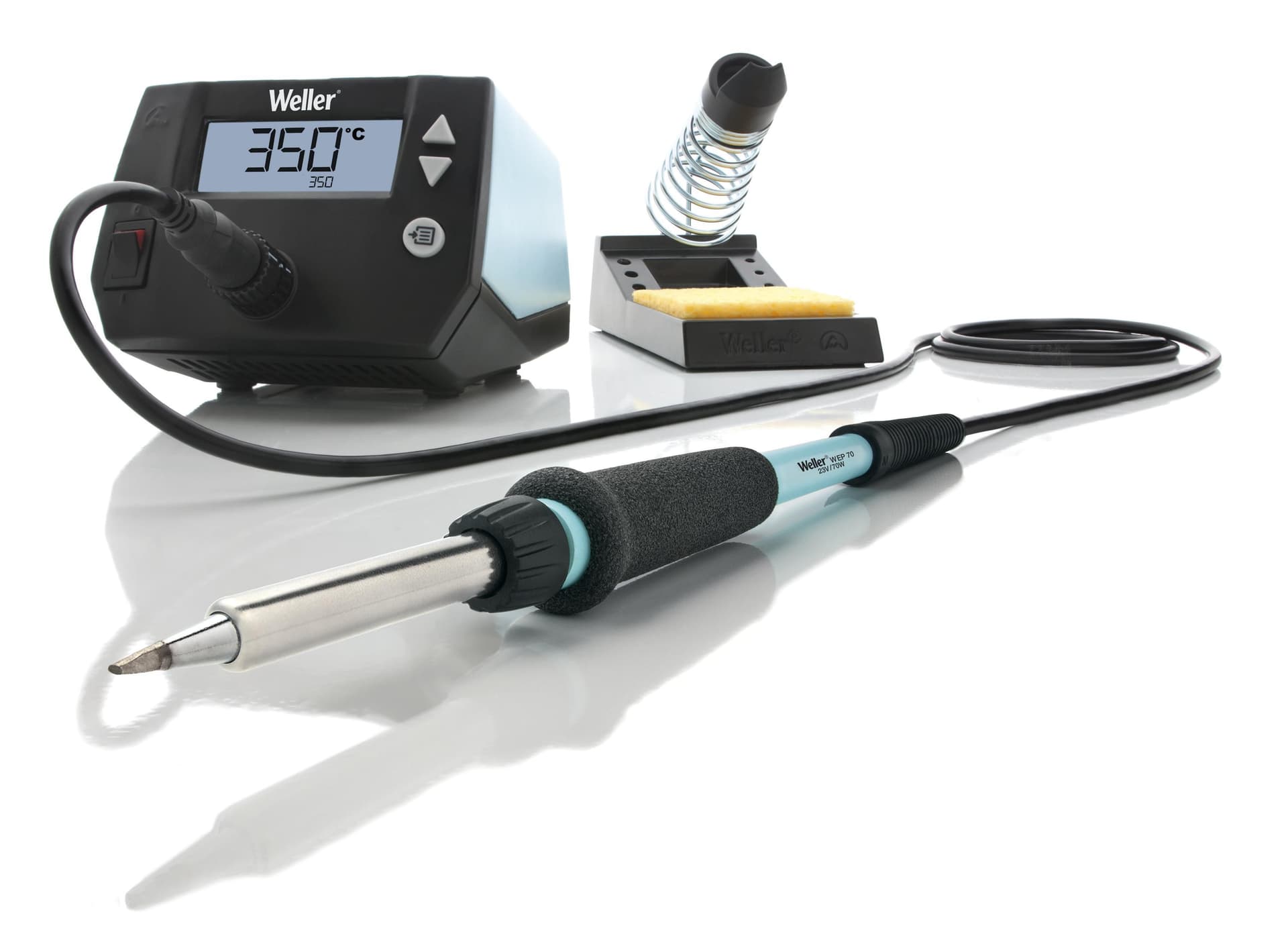
85W digital, ESD-safe station (70W iron) that heats in about 28 seconds, for dedicated workbenches.
75W iron / 500W hot air (720W total), 200–480°C iron and 100–480°C air, for SMD/BGA rework alongside general soldering.
As an Amazon Associate I earn from qualifying purchases. Prices and availability are shown on Amazon.
The short answer
Frequently asked questions
Can you replace a USB-C port with just a soldering iron?
Sometimes. If the replacement receptacle has all its signal tails exposed at the back edge and through-hole shell tabs, a fine-tipped iron, flux and wick can do the whole job. Many USB-C receptacles hide contacts underneath the body, and removing an old port with many pins is much easier with hot air, so plan for both tools if you do this work regularly.
Is a cheap soldering iron good enough for fixing a charging port?
A basic iron can manage a through-hole USB-A or barrel jack, but a charging port on a phone or laptop board is harder: you need a fine tip, steady temperature and enough heat for the shell tabs. An adjustable, temperature-controlled iron with a fine tip available is the practical minimum for fine-pitch connector work.
Should I repair the port or replace the whole board?
If the port itself is worn or broken and the pads underneath are intact, replacing the connector is a reasonable repair. If pads or traces have lifted, or the board has liquid damage around the port, the job gets much harder. Some devices put the port on a small separate daughterboard, which is often easier to swap than to solder.
Why does my new USB port only charge but not transfer data?
Charging uses the power and ground contacts, while data needs the much smaller signal pins to be soldered properly. A data fault after a port swap usually points to an unsoldered or bridged data pin, or a damaged pad. Inspect the signal pins under magnification and check continuity from each pin to its trace with the device powered off.
Should I clean a charging port before replacing it?
Yes. Pocket lint packed into the bottom of a phone port often stops the plug seating fully, which looks just like a failed connector. Power the device off and ease the debris out with a wooden or plastic pick, never metal. If the cable then clicks in firmly and charges reliably, the port did not need replacing at all, and no soldering is required.